Unlock Your Android’s Full Potential: A Simple Setting to Boost Speed and Save Battery
Introduction
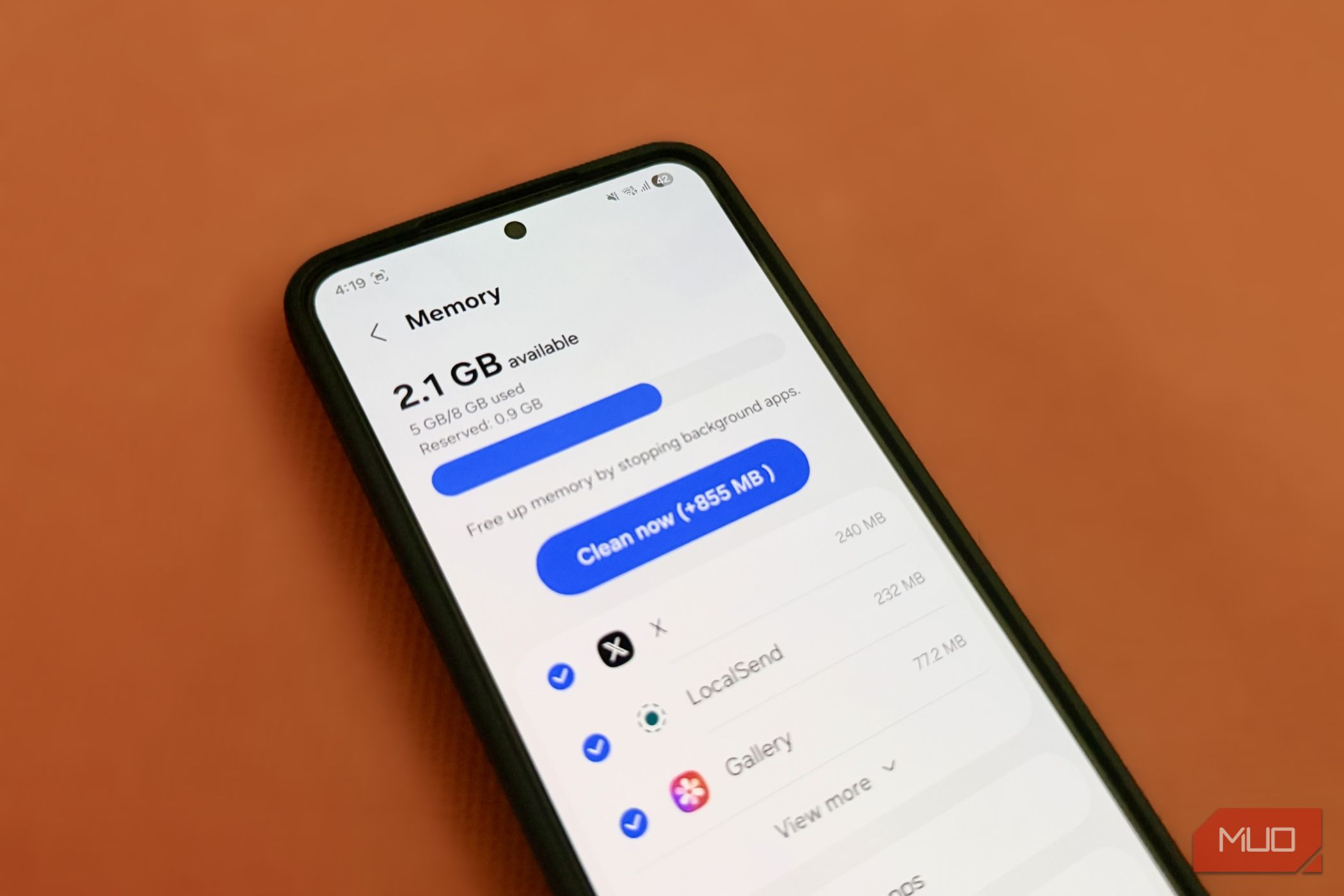
Your Android phone started out lightning-fast, but after a few months of installing apps, it feels sluggish. The hardware hasn’t changed, but the number of background processes has. Each app adds tasks that drain both performance and battery. Fortunately, one hidden setting can dramatically improve speed and extend battery life without uninstalling anything. This guide will walk you through enabling Developer Options and tweaking the background process limit.
What You Need
- An Android phone (any version 4.1 or newer)
- About 5 minutes of time
- Patience – the first change might feel different
Step 1: Enable Developer Options
Developer Options are hidden by default. To access them:
- Open Settings.
- Scroll down and tap About phone.
- Find Build number (usually under “Software information”).
- Tap the Build number seven times quickly. You’ll see a countdown message.
- After the seventh tap, a message says “You are now a developer!”
Now, go back to the main Settings screen. You’ll see a new menu: Developer options (or System > Developer options).
Step 2: Navigate to the Background Process Limit
Once inside Developer Options:
- Scroll down to the Apps section.
- Look for Background process limit (may be under “Memory” or “Application” depending on your device).
- Tap it. You’ll see a list of options: Standard limit, No background processes, At most 1 process, At most 2 processes, At most 3 processes, and At most 4 processes.
Step 3: Choose the Right Limit
Each option changes how many apps can run in the background:
- No background processes – only the foreground app runs. It’s the most aggressive but can break notifications or widgets.
- At most 1 process – allows only one background app. Good for older phones or heavy games.
- At most 2 processes – a balanced choice for most users.
- At most 3 or 4 processes – keeps more apps alive but still reduces clutter compared to “Standard limit”.
For best results, start with At most 2 processes. You can always adjust later.
Step 4: Apply and Test
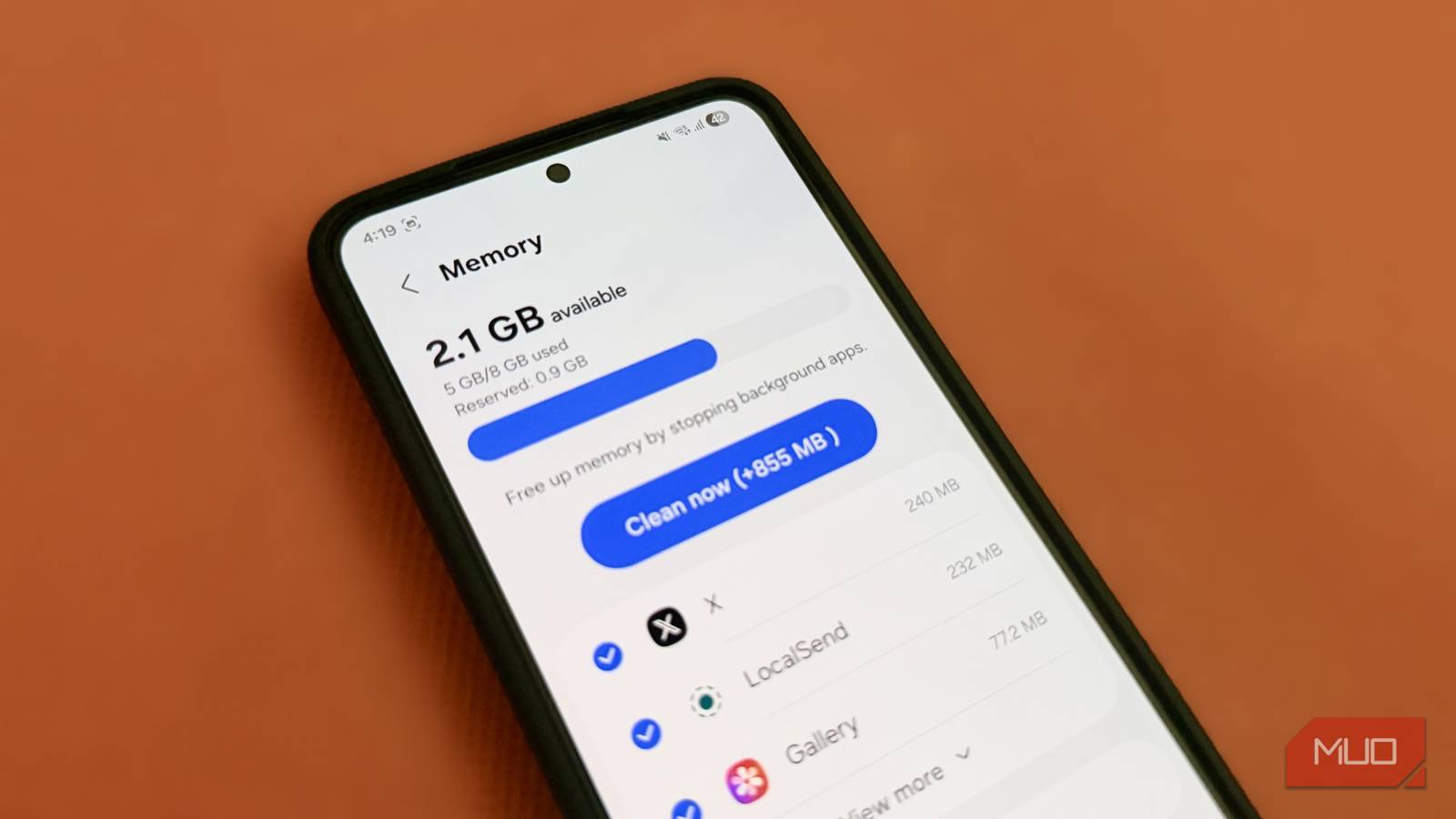
After selecting your limit, close Settings. Use your phone normally for a few hours. You should notice:
- Faster app switching
- Less lag when opening recent apps
- Longer battery life (fewer background refreshes)
If an important app stops working (e.g., your messaging app doesn’t receive messages), increase the limit to 3 or 4.
Step 5: Fine‑Tune (Optional)
You can also combine this with other tweaks:
- Disable or uninstall bloatware
- Reduce animation scale in Developer Options (set Window, Transition, and Animator scales to 0.5x)
- Use a lightweight launcher
Tips for Success
- Reboot after changing the limit – this clears cached processes.
- Monitor battery usage in Settings after a day.
- If you rely on notifications from many apps, stick with “At most 3 processes”.
- Reversible – you can always go back to “Standard limit” if needed.
- Warning: Changing Developer Options can affect system stability. Only adjust settings you understand.
By limiting background processes, you’re giving your phone a new lease on life. Try it for a week – you’ll wonder why you didn’t do it sooner.